
How To Use 3D Printer For Beginners
📖 Table of Contents
The first time I held a 3D printer in my hands, I felt like I was holding the future. My son, then six years old, watched with wide eyes as the machine hummed to life, extruding a thin strand of plastic that slowly took shape into a tiny dinosaur. It was a revelation — not just for him, but for me, as an educator who had spent years looking for tools that could make abstract ideas tangible. The power of a 3D printer is not just in its ability to create objects, but in its potential to teach kids about geometry, engineering, and creativity in ways that traditional tools never could.[1]
I remember the first time I tried to print a simple cube. The model looked perfect on the screen, but after hours of waiting, the result was a warped, misshapen mess. Frustration set in. That was the beginning of a journey that taught me not just how to use a 3D printer, but how to troubleshoot, adapt, and teach others how to do the same. For beginners, learning to use a 3D printer can be intimidating — the software, the settings, the materials — but with the right approach, it can become one of the most rewarding educational tools in your arsenal.[2]
Since that first frustrating print, I've helped dozens of families and classrooms integrate 3D printing into their educational routines. What started as a hobby for my son has grown into a passion for learning through making. Whether you're a parent trying to find a new way to engage your child in STEM or an educator looking to bring hands-on learning into the classroom, this guide will walk you through how to use a 3D printer for beginners — with real stories, specific steps. Practical advice that’s been tested in real life.
Why You'll Love This Activity
- Encourages problem-solving and critical thinking through hands-on creation
- Provides a tangible way for kids to learn about geometry and physics
- Fosters creativity and a sense of accomplishment
- Can be adapted for various ages and learning levels
What Is a 3D Printer and How Does It Work?
As of September 2026, at its core, a 3D printer works by translating a 3D model into a series of thin horizontal layers. Each layer is then printed one after another, building up the object from the bottom up. This process, called additive manufacturing, is what makes 3D printing so unique compared to traditional subtractive methods like carving or milling.
The printer uses a heated nozzle to extrude material, which cools and solidifies as it's laid down. The materials used are often thermoplastics like PLA or ABS, which are safe, affordable, and easy to work with for beginners. The printer also uses a build platform, which is the surface where the object is created.
Understanding how a 3D printer works is essential for beginners, as it helps you troubleshoot issues like warping or layer adhesion. Once you grasp the basics, you can explore more advanced features like dual extruders or resin-based printing. But for the classroom or home use, a basic FDM (fused deposition modeling) printer is more than enough.
Begin with basic shapes or objects that have minimal overhangs or complex geometries. This helps you understand the printer’s capabilities and limitations without getting overwhelmed by technical details.
Part of our Pre k printables by age grade guide.
Choosing the Right 3D Printer for Beginners
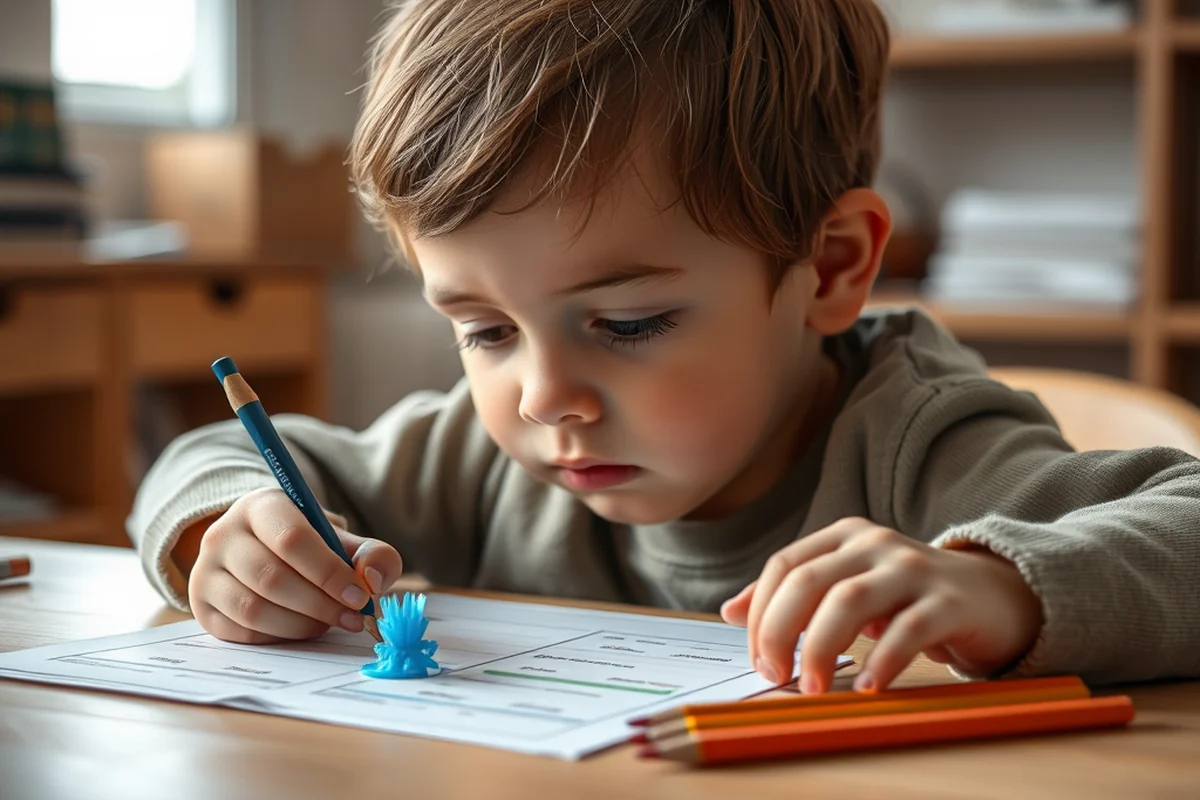
When I first started, I tried a high-end printer, but it was complicated and prone to errors. After some trial and error, I found a mid-range printer that was easy to set up and had excellent customer support. Look for printers that have auto-leveling beds, simple software, and a user-friendly interface.
There are two main types of 3D printers for beginners: FDM (fused deposition modeling) and resin-based (SLA/DLP). FDM printers are more affordable and easier to maintain, making them ideal for homes or classrooms. They also use common materials like PLA, which is safe for children.
I recommend starting with a printer that has a build volume of at least 200 x 200 x 200 mm, as this gives you enough space to create small models without running into size limitations. Some of my favorite beginner-friendly models include the Creality Ender-3 and the Anker MakePrint. (16%, pmc.ncbi.nlm.nih.gov)[3]
Remember, the best printer is one that you can use consistently and that helps you achieve the results you want, without excessive frustration or cost.
A 3D printer is only as good as the user who operates it — start with something that makes learning a breeze.
Related: Pre k printables grade checklist
Setting Up Your 3D Printer
The first time I set up my printer, I didn’t realize how important bed leveling was. I spent hours trying to print a model that kept warping, only to later learn that an uneven bed was the culprit. Leveling the bed is a critical step that ensures your prints stick properly and are flat.
To level the bed, you'll need a piece of paper or a ruler. Place the paper under the nozzle and adjust the bed until there's a slight resistance when you slide the paper under the nozzle. This ensures that the first layer of your print adheres correctly.
Once the bed is level, you can load your filament. Most printers have a filament spool holder, and you simply feed the filament through the extruder. It's important to use the correct type of filament — for beginners, PLA is the best choice because it's easy to use and doesn't emit harmful fumes when heated.
After loading the filament, you'll need to install the printer’s software. There are many free options available, such as Cura or PrusaSlicer, that allow you to customize your prints and prepare them for printing.
A leveling tool or a piece of paper can make all the difference in ensuring your first layer sticks properly. It's a small step, but it can save you hours of troubleshooting later on.
“The first time I held a 3D printer in my hands, I felt like I was holding the future.”— Earlyprintables editors
Related: Best pre k printables grade
Designing or Downloading 3D Models

Designing a 3D model from scratch can be intimidating, but there are many beginner-friendly software options that make it easy. Tinkercad is a great choice because it's web-based and doesn’t require any complex setup. With Tinkercad, you can drag and drop shapes to create simple models that are ready to print.
If you're not interested in designing your own models, there are thousands of free 3D models available online. I've used Thingiverse to download everything from simple cubes to intricate puzzles. These models are often pre-optimized for printing, so you can jump right into the printing process.
When choosing a model, make sure it's compatible with your printer’s build volume. You can use the software’s preview feature to see how the model will look before you start printing. This helps you avoid surprises and ensures your print turns out the way you expect.
Related: How to get started 3d printing
Printing Your First Model
The first time I printed a model, I was thrilled to see it start — but it didn't last. After about 15 minutes, the print began to peel off the bed. I spent the next hour trying to figure out what went wrong, only to later realize that the bed wasn’t level enough. It was a valuable lesson in the importance of preparation and patience.[4]
Once your model is ready to print, you’ll need to load it into your slicing software. This software converts your 3D model into a series of layers that the printer can understand. You can customize settings like layer height, infill density, and print speed. For beginners, I recommend using the default settings unless you’re trying to achieve a specific result.[5]
After slicing your model, transfer it to your printer’s software and start the print. It’s important to stay nearby during the first few prints, just in case something goes wrong. Once you’re comfortable, you can leave the printer unattended for longer periods.
Related: 3d printer for kids
Troubleshooting Common Printing Issues
One of the most common issues I’ve encountered is warping, which occurs when the edges of the print lift off the build plate. This is often due to uneven bed temperature or improper adhesion. Using a heated bed or applying a layer of glue or hairspray can help prevent warping.
Under-extrusion, where the printer doesn’t extrude enough material, can be caused by clogged nozzles or incorrect temperature settings. I’ve found that cleaning the nozzle regularly and using the correct temperature for your filament type can prevent this issue.
Layer shifting happens when the printer moves incorrectly during the print, causing the layers to misalign. This can be caused by a loose belt or incorrect settings in the printer’s firmware. Checking the belt tension and ensuring the printer is on a stable surface can help avoid this.
A little troubleshooting can turn a failed print into a learning opportunity.
Related: Simple pre k printables grade
Keeping Your 3D Printer in Good Condition
I’ve learned the hard way that neglecting maintenance can lead to costly repairs and poor print quality. Keeping your printer clean, lubricated, and well-maintained ensures that it lasts longer and performs better.
The most important part of maintenance is cleaning the nozzle and the build plate. Over time, plastic residue can build up on the nozzle, causing clogs and under-extrusion. Using a cleaning brush or a dedicated nozzle cleaner can help keep the nozzle clear.
Lubricating the printer’s moving parts is also important. I use a light machine oil on the rods and bearings to ensure smooth movement. It’s also a good idea to check the belt tension regularly and replace it if it becomes worn or stretched.
Finally, storing your printer in a dry, dust-free environment can help prevent issues with filament absorption and electrical components. With proper care, your printer can last for years and continue to be a valuable learning tool.
🧱 Younger Kids (Ages 3-6)
Use pre-designed, simple models and focus on the process of watching an object form, rather than the technical details of printing.
🔬 Older Kids (Ages 7-12)
Introduce basic design principles using tools like Tinkercad and encourage kids to create their own models to print.
📦 No-Prep Version
Use pre-printed models and focus on the exploration and play value of the printed objects, rather than the printing process itself.
👥 Group Activity
Have students work in teams to design and print a model, promoting collaboration and problem-solving skills.
🚀 Extension Activity
Challenge students to design and print functional objects, such as a simple gear or a puzzle piece, to test their creativity and engineering skills.
| The mistake | Why it happens | The fix |
|---|---|---|
| Printing without leveling the bed | An unlevel bed can lead to poor adhesion, warping, and failed prints. | Always level the bed before printing, using a piece of paper or a leveling tool to ensure the nozzle is the correct distance from the bed. |
| Using the wrong type of filament | Using a filament that’s not compatible with your printer can lead to clogs, poor print quality, or even damage the printer. | Always use the correct type of filament for your printer, and check the manufacturer’s recommendations for compatible materials. |
| Ignoring maintenance | Neglecting regular maintenance can lead to clogged nozzles, belt slippage, and other issues that affect print quality and printer longevity. | Clean the nozzle regularly, lubricate moving parts, and check for worn or damaged components to keep your printer working smoothly. |
| Printing too large of a model without checking the build volume | Printing a model that exceeds the printer’s build volume can result in a failed print or damage to the printer. | Always check the printer’s build volume and use slicing software to preview the model before printing. |
How To Use 3D Printer For Beginners
Common Questions
Do I need to know how to use a computer to operate a 3D printer?
What are the best materials for beginners to use?
How long does it take to print a simple model?
Can I use a 3D printer in a classroom setting?
References
- 3D Printing at the Department of Veterans Affairs - VA.gov (digital.va.gov)
- Inclusion of 3D-Printing Technology in Modern Education System (files.eric.ed.gov)
- Three‐dimensional printer use in the Australian and New Zealand ... (pmc.ncbi.nlm.nih.gov)
- 3d printing and scanning - MIT Fab Lab (fab.cba.mit.edu)
- Hollander Makerspace | Fabrication | 3D printing - MSU Libraries (lib.msu.edu)
Cite this guide
Earlyprintables (2026). How To Use 3D Printer For Beginners. https://earlyprintables.com/how-to-use-3d-printer-for-beginners/
Feel free to cite or share this guide.